¶ Firmware Architecture Overview
Your KE Digital Dash uses two independent firmware systems working together:
- Digital Dash Firmware – Handles graphics rendering and vehicle data acquisition
- Web App Firmware – Handles configuration, customization, and connectivity
¶ Updating the Digital Dash Firmware
¶ Prerequisite: Download the Latest Digital Dash Firmware
The most up-to-date firmware, complete release notes, and all previous versions are available on our
GitHub Releases page
If you prefer a direct download, you can use the latest version here:
digitaldash-gen2-v1.0.10.bin
⚠️ IMPORTANT – 2013–2014 Owners
Please email matt@kaiserengineering.io with your order number and current shipping address. We will send you a prepaid return label so we can update your unit to improve auto on/off performance.
¶ 1. Upload Digital Dash Firmware
Once you have downloaded the firmware, connect to your Digital Dash and navigate to Firmware --> Digital Dash.
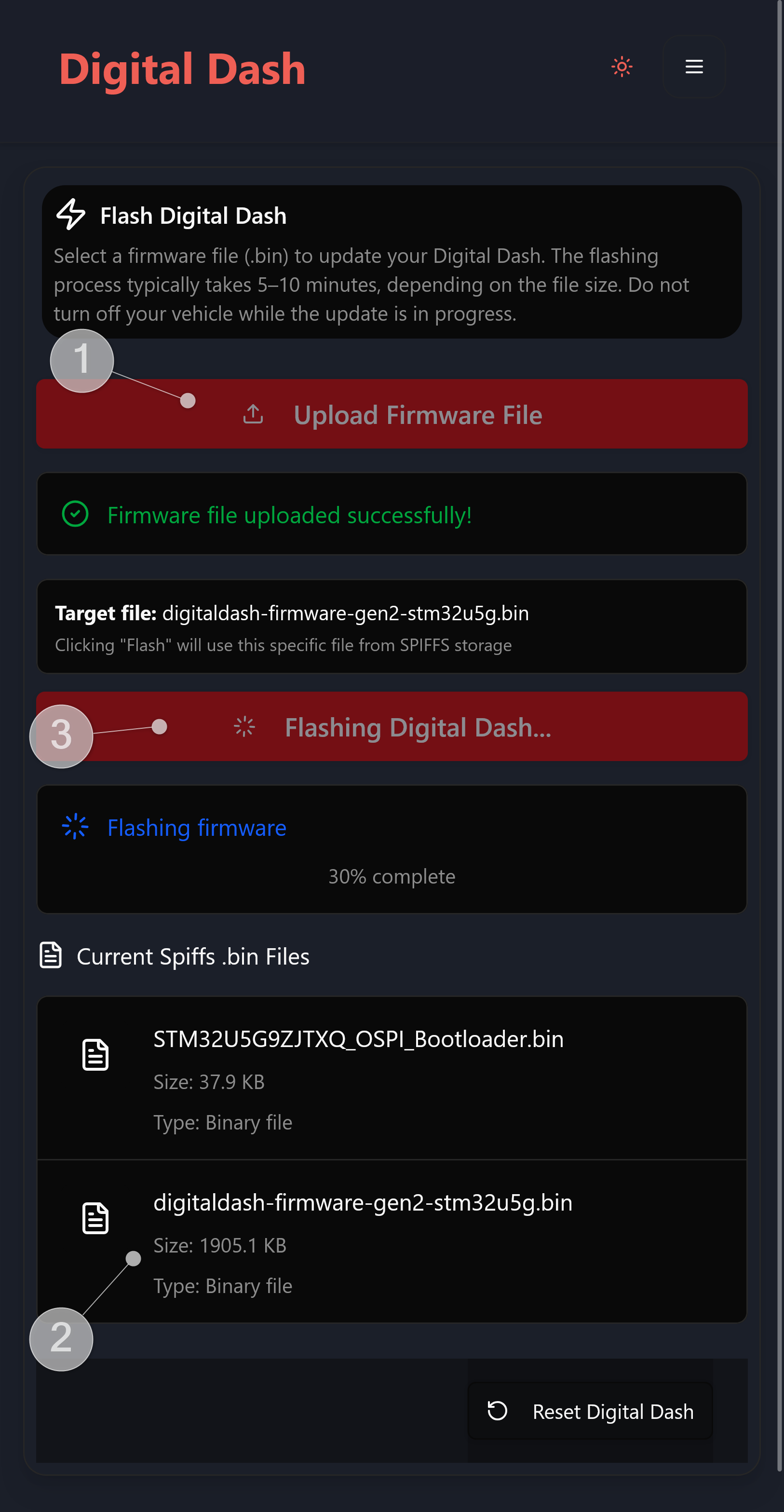
- Click the Upload Firmware File button and choose the binary file you downloaded (maximum size: 4 MB). Once the upload is complete, you will see the message “Firmware file uploaded successfully!”. This step is transferring the image onto the Web App storage, it has not yet been applied to the Digital Dash.
Do not disconnect or leave the page while the transfer is in progress.
¶ 2. Verify Digital Dash Firmware
- Verify that the image has been copied over successfully and is around 2000KB/2MB.
¶ 3. Flash Digital Dash Firmware
- After verification, click “Flash to Digital Dash” to begin the firmware update process.
- If an error occurs, you can reset the Digital Dash using the button in the bottom-right corner and retry the flashing.
- If the problem persists, try rebooting the dash entirely. Note: you can skip the Upload Firmware File step after a reboot since the file is already uploaded, but not yet applied.
- Once the firmware update begins, DO NOT TURN OFF YOUR VEHICLE until the screen powers back on.
- After the update reaches 100%, you’ll see a message instructing you to wait about 30 seconds.
If the Digital Dash does not restart within a few minutes, disconnect it and contact Kaiser Engineering for support.
¶ Updating the Digital Dash Web App
¶ 1. Download latest Web App firmware
The most up-to-date firmware, detailed release notes, and all previous versions are available on our GitHub Releases page.
If you prefer a direct download, here is the latest version: KE_DigitalDash_Webapp.bin
¶ 2. Upload Web App Firmware
Once you have downloaded the firmware, connect to your Digital Dash and navigate to Firmware --> Web App.
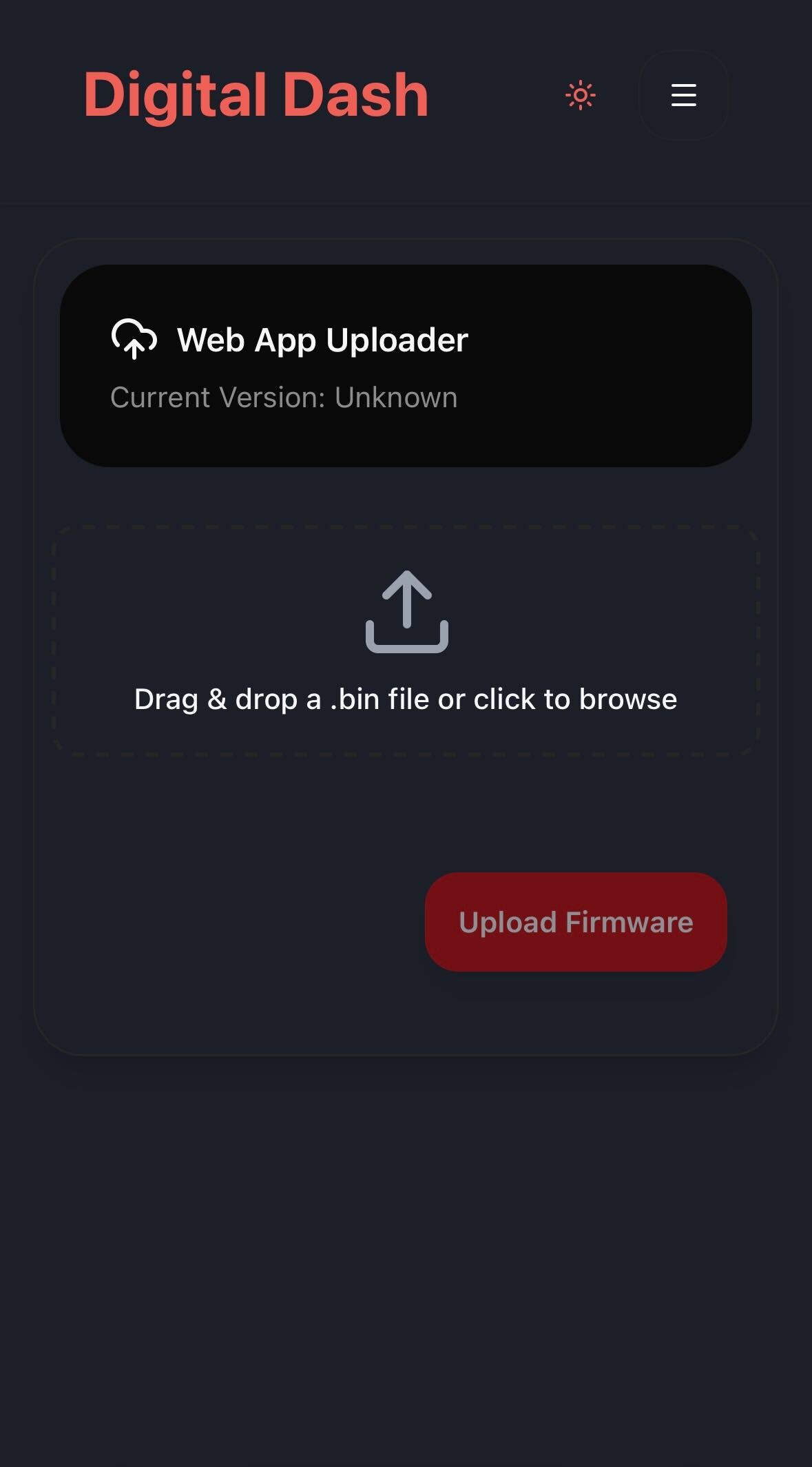
- Click the Upload button and choose the Web App binary file you downloaded. Once the upload is complete, the Web App will automatically install the update and reboot. You may need to reconnect to the WiFi after the update has completed.
Do not disconnect or leave the page while the transfer is in progress.